安装JUDDI服务器以及发布WSDL:第一部分,安装及配置
Installation andConfiguration
ByJoel Barnum, Descriptor Systems.
IntroductionIn this article, you will learn how to install the open-source jUDDI server andconfigure it. In Part 2,you will publish a Web service's WSDL to it.
This article assumes that you are familiar with SOAP, WSDL and UDDI, as these topics will not be explored here.
Blatant, shameless plug: If you are not familiar with SOAP, WSDL and UDDI, Irecommend that you get some Web services training from Descriptor Systems. Youcan find more information at www.descriptor.com. Thanks!
Update: Unfortunately, these in structions do NOT work if you have Java 1.6 installed. Apparently, there is abug with no work around due to a conflict between jUDDI and Java 6.
Update#2: There IS a work around! To fix the Java 6 bug,after installing Tomcat, add the following to the top of the$TOMCAT_INSTALL/bin/catalina.sh (or catalina.bat):
Type:
HSQL Database Engine Standalone
URL:
jdbc:hsqldb:file:{TOMCAT-HOME}/db/uddi
Be sure to substitute the actual pathname for {TOMCAT-HOME} (note that forward slashes are OK evenin Windows). Then press OK.
9. In theHSQLDB GUI, choose File - OpenScript and navigate to the {JUDDI-HOME}/sql/hsqldb folder, then select the create_database.sql script and press Open. To run thescript, press the Execute button. The HSQL GUI will report an"Update Count" of 1.
10. Repeat theabove step to open the {JUDDI-HOME}/sql/hsqldb/insert_publishers.sql script. Before executing it, removethe "--" comment characters in front of the INSERT and VALUES lines in the script. After executing,you should see an "Update Count" of 1.
You can then choose View - Refresh Tree from the GUI's menu to see thedatabase tables.
To further test, highlight and delete the textINSERT command text and then enter:
SELECT COUNT(*) FROM PUBLISHERYou should see a result of "1". Closethe GUI when you are finished.
11. Copy the {JUDDI-HOME}/webapps/juddi directory to {TOMCAT-HOME}/webapps. Youshould end up with a {TOMCAT-HOME}/webapps/juddi directory that contains index.html, happyjuddi.jsp and several subdirectories. Thisinstalls the jUDDI web application into Tomcat.
12. In the {TOMCAT-HOME}/webapps/juddi/META-INF directory,create a file named context.xml.Enter the following into the file:
13. <Context path="/juddi" docBase="juddi" debug="5" reloadable="true"14. crossContext="true">15. <Logger className="org.apache.catalina.logger.FileLogger"16. prefix="localhost_juddiDB_log" suffix=".txt"17. timestamp="true"/>18.19. <Resource name="jdbc/juddiDB"20. auth="Container"21. type="javax.sql.DataSource"22. username="sa" password=""23. driverClassName="org.hsqldb.jdbcDriver"24. url="jdbc:hsqldb:file:{TOMCAT-HOME}/db/uddi"25. validationQuery="select publisher_ID from PUBLISHER"/>26. <Resource name="jdbc/juddi"27. auth="Container"28. type="javax.sql.DataSource"29. username="sa" password=""30. driverClassName="org.hsqldb.jdbcDriver"31. url="jdbc:hsqldb:file:{TOMCAT-HOME}/db/uddi"32. validationQuery="select publisher_ID from PUBLISHER"/>33. </Context>Be sure to replace the {TOMCAT-HOME} placeholders with the actual pathname.This file configures two DataSources so that the jUDDI application can use theHSQLDB database tables you created in an earlier step.
34. Edit the {TOMCAT-HOME}/webapps/juddi/WEB-INF/web.xml file and near the bottom, copy theexisting resource-ref element so there are two. Edit thecopy to define a res-ref-name of jdbc/juddi.The two resource-ref elements should look like:
35. <resource-ref>36. <description>jUDDI DataSource</description>37. <res-ref-name>jdbc/juddiDB</res-ref-name>38. <res-type>javax.sql.DataSource</res-type>39. <res-auth>Container</res-auth>40. </resource-ref>41. <resource-ref>42. <description>jUDDI DataSource</description>43. <res-ref-name>jdbc/juddi</res-ref-name>44. <res-type>javax.sql.DataSource</res-type>45. <res-auth>Container</res-auth>46. </resource-ref>47. In thecommand prompt or terminal window, change to the {TOMCAT-HOME}/bin folder and start Tomcat by enteringone of the following, depending on your operating system:
48. catalina run -- for Windows49. ./catalina.sh run -- for *nix50. Test jUDDIby opening a Web browser and entering the following URL:
51. http://localhost:8080/juddi/happyjuddi.jsp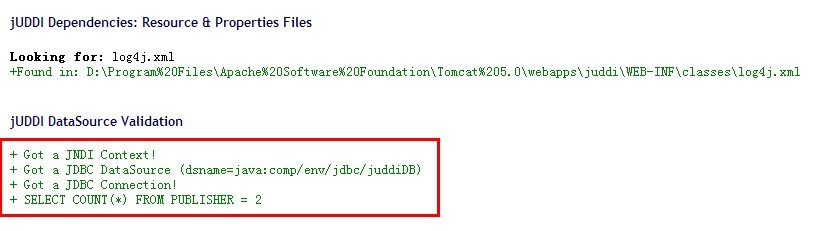
You should not see any errors on the page (no red text).
52. One finaltest. Enter the following URL into your browser:
53. http://localhost:8080/juddi/console/get_authToken.jspIn the top multi-line entry area, change the userID from *** to jdoe and the cred from *** to an empty string. Then press theSubmit button.
In the bottom multi-line area, you should see areturned SOAP message with an authInfo element containing text of the form authToken:xxxxxxxx-xxxx-xxxx-xxxx-xxxxxxxxxxxx.If that worked, then you have successfully installed and configured jUDDI!
文章来源:http://www.descriptor.com/articles/web-services/juddi.html

