首页 诗词 字典 板报 句子 名言 友答 励志 学校 网站地图
当前位置: 首页 > 教程频道 > 操作系统 > windows >

windows 2003上面搭建多用户VPN

2012-08-30 
windows 2003下面搭建多用户VPN检查防火墙首先看看你的防火墙是否开启,如果开启将其设置为关闭。在服务中将

windows 2003下面搭建多用户VPN
检查防火墙

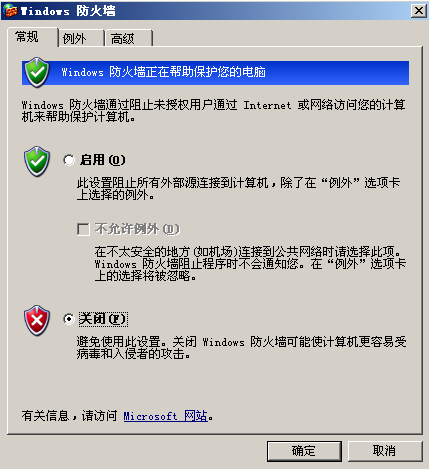
首先看看你的防火墙是否开启,如果开启将其设置为关闭。
windows 2003上面搭建多用户VPN

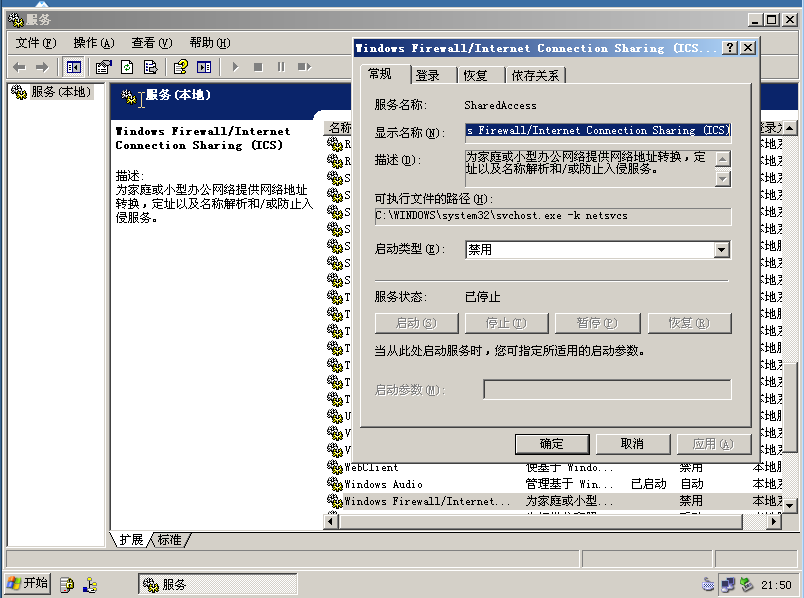
在服务中将Windows Firewall/Internet Connection Sharing (ICS)关闭并禁用。
windows 2003上面搭建多用户VPN

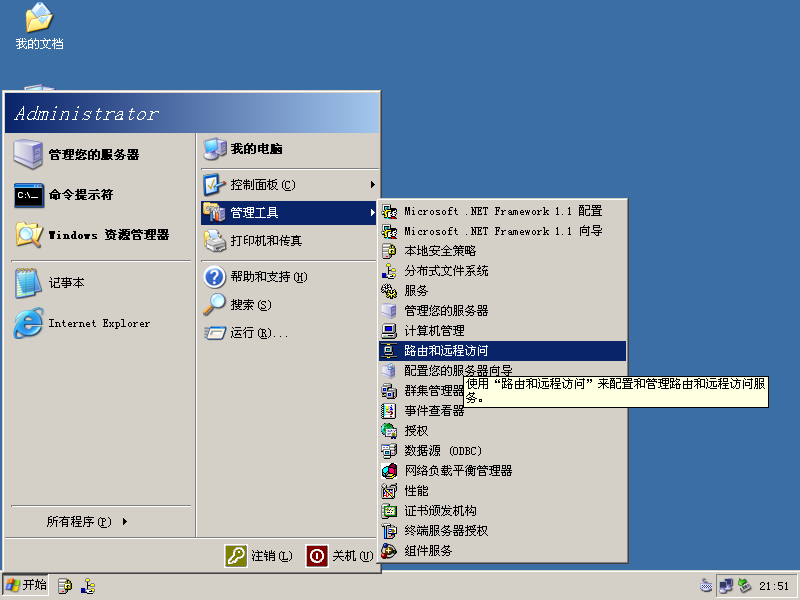
ok,找到路由和远程访问

windows 2003上面搭建多用户VPN

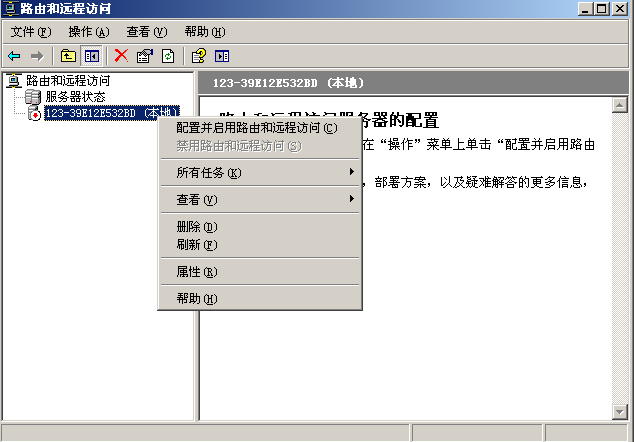
打开,右击服务器,选择配置并启动路由和远程访问

windows 2003上面搭建多用户VPN

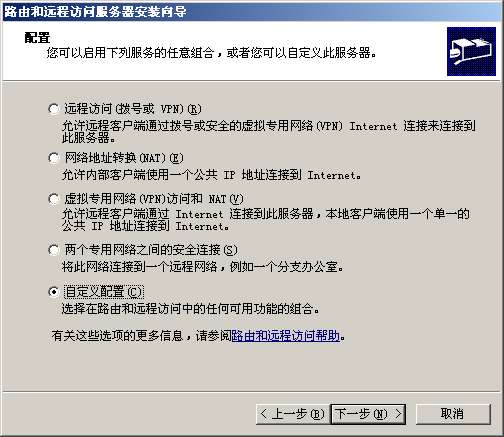
选择自定义配置

windows 2003上面搭建多用户VPN

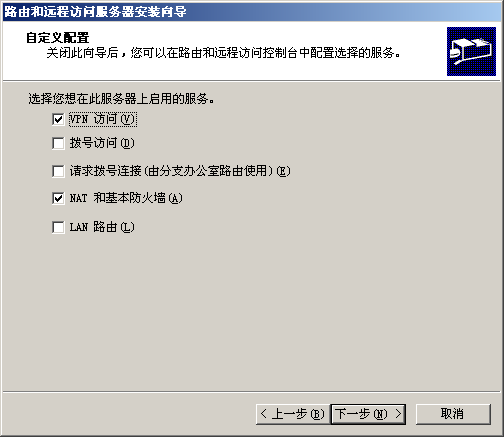
勾上VPN访问与NAT和基本防火墙

windows 2003上面搭建多用户VPN

完成想到后,会提示是否开始,单击是。

windows 2003上面搭建多用户VPN

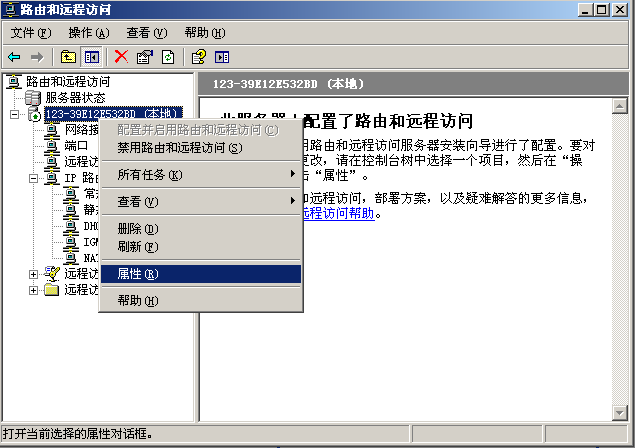
右击服务器,选择属性

windows 2003上面搭建多用户VPN

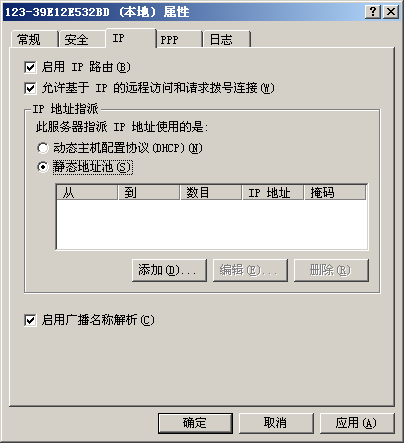
在IP选项卡中选择静态地址池

windows 2003上面搭建多用户VPN

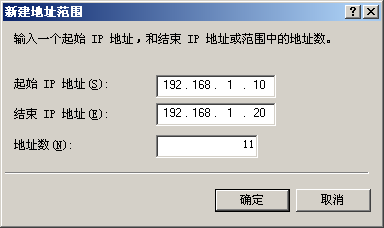
向地址池中添加IP范围

windows 2003上面搭建多用户VPN

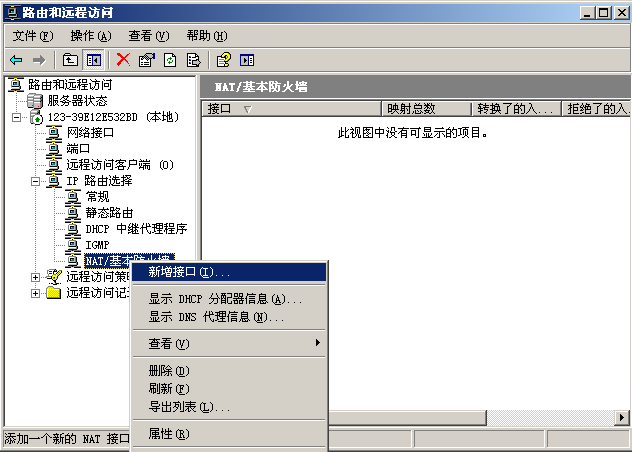
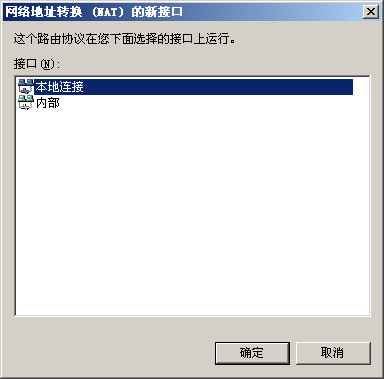
配置NAT,右击NAT/基本防火墙选择新增接口

windows 2003上面搭建多用户VPN

选择本地连接

windows 2003上面搭建多用户VPN

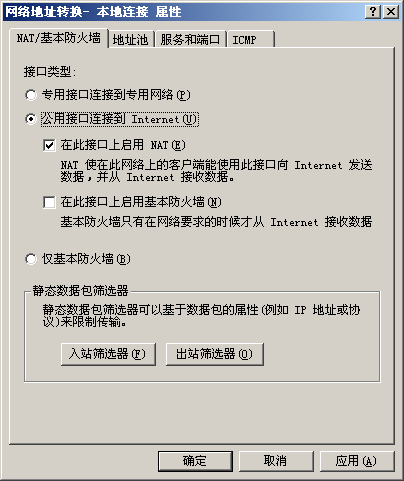
在NAT/基本防火墙选项卡中选择共用接口连接到Internet,并勾上在此接口上启用NAT。
windows 2003上面搭建多用户VPN

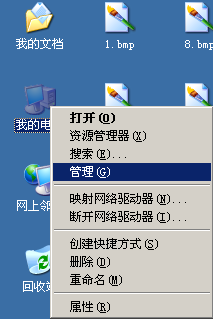
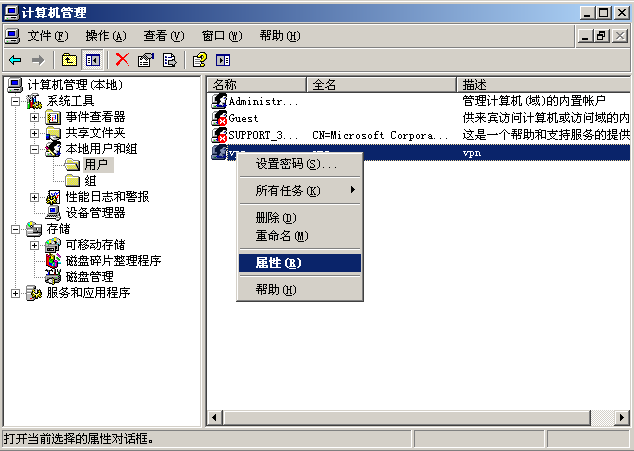
之后就是配置用户,选择计算机管理

windows 2003上面搭建多用户VPN

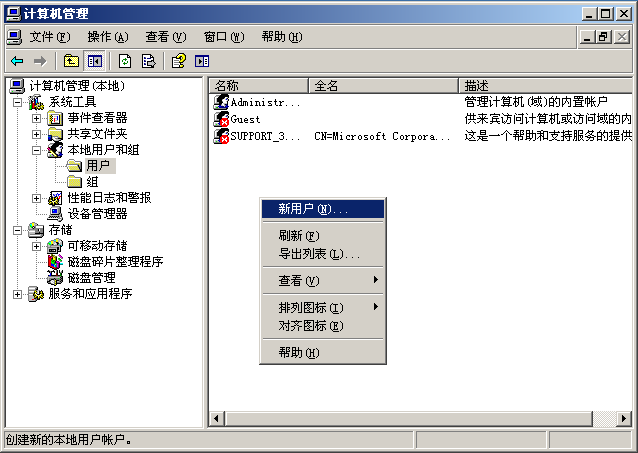
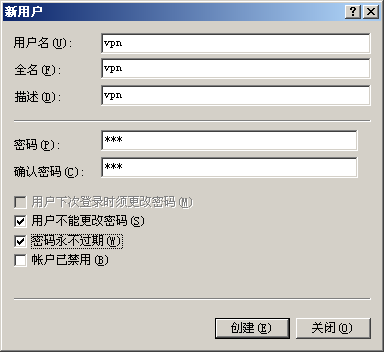
在用户中添加新用户。

windows 2003上面搭建多用户VPN

windows 2003上面搭建多用户VPN

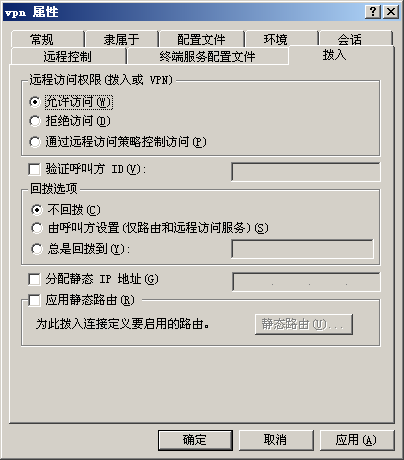
选择属性配置权限

windows 2003上面搭建多用户VPN

给予VPN访问权限。

windows 2003上面搭建多用户VPN

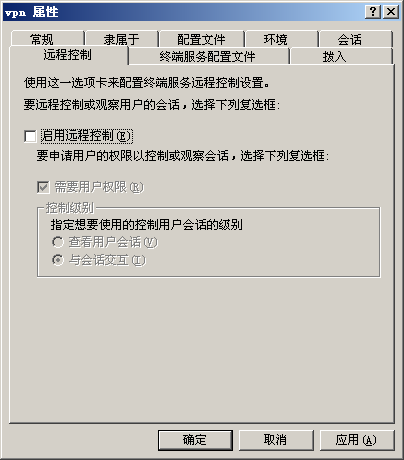
取消远程控制权限

windows 2003上面搭建多用户VPN

ok配置完成。
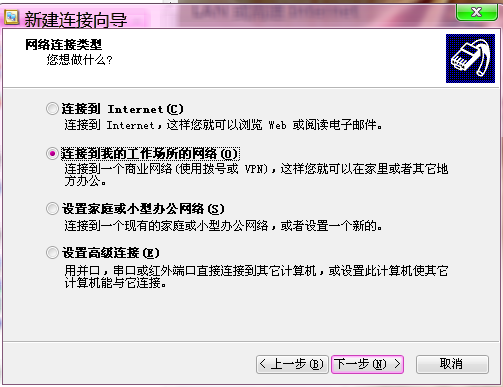
创建一个VPN客户端windows 2003上面搭建多用户VPN

选择连接到我的工作场所的网络

windows 2003上面搭建多用户VPN

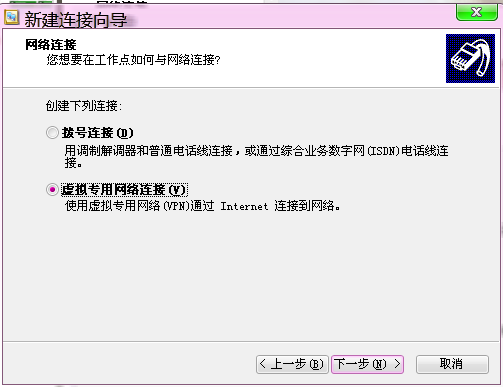
选择VPN

windows 2003上面搭建多用户VPN

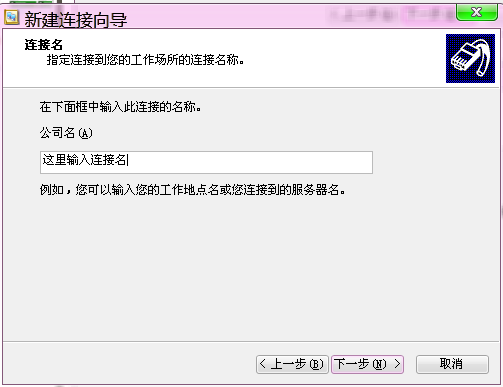
输入连接名

windows 2003上面搭建多用户VPN

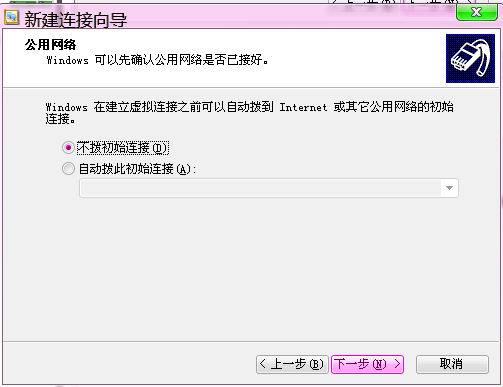
不初始化其他链接

windows 2003上面搭建多用户VPN

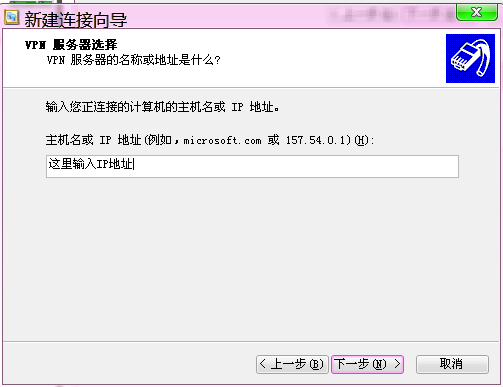
VPN服务的IP地址

windows 2003上面搭建多用户VPN

用户名密码

windows 2003上面搭建多用户VPN


热点排行