
写一个小工具实现自动录入数据功能
首先在如下图截图中richtextbox 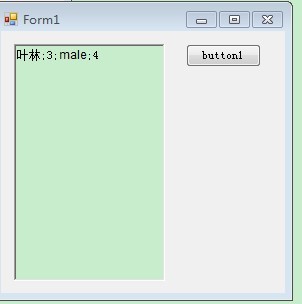 中输入数据
中输入数据
然后点击按钮要把相应的数据自动填到WindowsFormsApplication1.exe 中对应的框中如图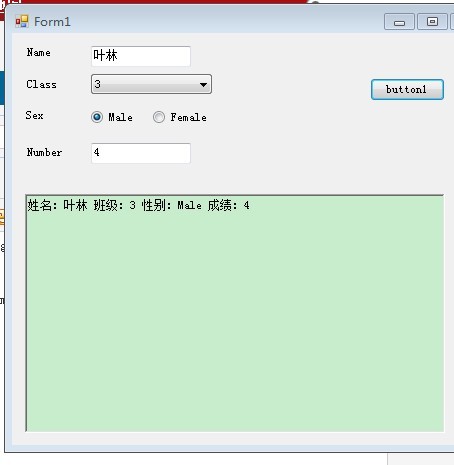
前面图一的 叶林自动填到name ,3自动选到class3, male 自动选择male按钮,4自动填到number文本框中,实现这个功能,然后点击button1 添加数据到下面richtextbox怎么 不知道怎么操作,求大神帮忙啊!!!
Form1设计器代码:
namespace WindowsFormsApplication1
{
    partial class Form1
    {
        /// <summary>
        /// 必需的设计器变量。
        /// </summary>
        private System.ComponentModel.IContainer components = null;

        /// <summary>
        /// 清理所有正在使用的资源。
        /// </summary>
        /// <param name="disposing">如果应释放托管资源,为 true;否则为 false。</param>
        protected override void Dispose(bool disposing)
        {
            if (disposing && (components != null))
            {
                components.Dispose();
            }
            base.Dispose(disposing);
        }

        #region Windows 窗体设计器生成的代码

        /// <summary>
        /// 设计器支持所需的方法 - 不要
        /// 使用代码编辑器修改此方法的内容。
        /// </summary>
        private void InitializeComponent()
        {
            this.button1 = new System.Windows.Forms.Button();
            this.richTextBox1 = new System.Windows.Forms.RichTextBox();
            this.SuspendLayout();
            //
            // button1
            //
            this.button1.Location = new System.Drawing.Point(181, 23);
            this.button1.Name = "button1";
            this.button1.Size = new System.Drawing.Size(99, 36);
            this.button1.TabIndex = 0;
            this.button1.Text = "添加";
            this.button1.UseVisualStyleBackColor = true;
            this.button1.Click += new System.EventHandler(this.button1_Click);
            //
            // richTextBox1
            //
            this.richTextBox1.Location = new System.Drawing.Point(20, 23);
            this.richTextBox1.Name = "richTextBox1";
            this.richTextBox1.Size = new System.Drawing.Size(155, 185);
            this.richTextBox1.TabIndex = 3;
            this.richTextBox1.Text = "林叶;3;male;4";
            //
            // Form1
            //
            this.AutoScaleDimensions = new System.Drawing.SizeF(6F, 12F);
            this.AutoScaleMode = System.Windows.Forms.AutoScaleMode.Font;
            this.ClientSize = new System.Drawing.Size(292, 273);
            this.Controls.Add(this.richTextBox1);
            this.Controls.Add(this.button1);
            this.Name = "Form1";
            this.Text = "Form1";
            this.ResumeLayout(false);

        }

        #endregion

        private System.Windows.Forms.Button button1;
        private System.Windows.Forms.RichTextBox richTextBox1;
    }
}
Child设计器代码:
namespace WindowsFormsApplication1
{
    partial class Child
    {
        /// <summary>
        /// Required designer variable.
        /// </summary>
        private System.ComponentModel.IContainer components = null;

        /// <summary>
        /// Clean up any resources being used.
        /// </summary>
        /// <param name="disposing">true if managed resources should be disposed; otherwise, false.</param>
        protected override void Dispose(bool disposing)
        {
            if (disposing && (components != null))
            {
                components.Dispose();
            }
            base.Dispose(disposing);
        }

        #region Windows Form Designer generated code

        /// <summary>
        /// Required method for Designer support - do not modify
        /// the contents of this method with the code editor.
        /// </summary>
        private void InitializeComponent()
        {
            this.label1 = new System.Windows.Forms.Label();
            this.txtNameChild = new System.Windows.Forms.TextBox();
            this.label2 = new System.Windows.Forms.Label();
            this.label3 = new System.Windows.Forms.Label();
            this.label4 = new System.Windows.Forms.Label();
            this.selClassChild = new System.Windows.Forms.ComboBox();
            this.rbt1 = new System.Windows.Forms.RadioButton();
            this.rbt2 = new System.Windows.Forms.RadioButton();
            this.txtScoreChild = new System.Windows.Forms.TextBox();
            this.richTextChild = new System.Windows.Forms.RichTextBox();
            this.SuspendLayout();
            //
            // label1
            //
            this.label1.AutoSize = true;
            this.label1.Location = new System.Drawing.Point(31, 76);
            this.label1.Name = "label1";
            this.label1.Size = new System.Drawing.Size(35, 12);
            this.label1.TabIndex = 1;
            this.label1.Text = "姓名:";
            //
            // txtNameChild
            //
            this.txtNameChild.Location = new System.Drawing.Point(109, 74);
            this.txtNameChild.Name = "txtNameChild";
            this.txtNameChild.Size = new System.Drawing.Size(252, 21);
            this.txtNameChild.TabIndex = 2;
            //
            // label2
            //
            this.label2.AutoSize = true;
            this.label2.Location = new System.Drawing.Point(31, 130);
            this.label2.Name = "label2";
            this.label2.Size = new System.Drawing.Size(35, 12);
            this.label2.TabIndex = 3;
            this.label2.Text = "班级:";
            //
            // label3
            //
            this.label3.AutoSize = true;
            this.label3.Location = new System.Drawing.Point(31, 189);
            this.label3.Name = "label3";
            this.label3.Size = new System.Drawing.Size(35, 12);
            this.label3.TabIndex = 4;
            this.label3.Text = "性别:";
            //
            // label4
            //
            this.label4.AutoSize = true;
            this.label4.Location = new System.Drawing.Point(31, 239);
            this.label4.Name = "label4";
            this.label4.Size = new System.Drawing.Size(35, 12);
            this.label4.TabIndex = 5;
            this.label4.Text = "成绩:";
            //
            // selClassChild
            //
            this.selClassChild.FormattingEnabled = true;
            this.selClassChild.Items.AddRange(new object[] {
            "1",
            "2",
            "3",
            "4"});
            this.selClassChild.Location = new System.Drawing.Point(109, 126);
            this.selClassChild.Name = "selClassChild";
            this.selClassChild.Size = new System.Drawing.Size(254, 20);
            this.selClassChild.TabIndex = 6;
            //
            // rbt1
            //
            this.rbt1.AutoSize = true;
            this.rbt1.Location = new System.Drawing.Point(109, 189);
            this.rbt1.Name = "rbt1";
            this.rbt1.Size = new System.Drawing.Size(35, 16);
            this.rbt1.TabIndex = 7;
            this.rbt1.TabStop = true;
            this.rbt1.Text = "男";
            this.rbt1.UseVisualStyleBackColor = true;
            //
            // rbt2
            //
            this.rbt2.AutoSize = true;
            this.rbt2.Location = new System.Drawing.Point(195, 189);
            this.rbt2.Name = "rbt2";
            this.rbt2.Size = new System.Drawing.Size(35, 16);
            this.rbt2.TabIndex = 8;
            this.rbt2.TabStop = true;
            this.rbt2.Text = "女";
            this.rbt2.UseVisualStyleBackColor = true;
            //
            // txtScoreChild
            //
            this.txtScoreChild.Location = new System.Drawing.Point(109, 230);
            this.txtScoreChild.Name = "txtScoreChild";
            this.txtScoreChild.Size = new System.Drawing.Size(252, 21);
            this.txtScoreChild.TabIndex = 9;
            //
            // richTextChild
            //
            this.richTextChild.Location = new System.Drawing.Point(36, 295);
            this.richTextChild.Name = "richTextChild";
            this.richTextChild.Size = new System.Drawing.Size(325, 122);
            this.richTextChild.TabIndex = 10;
            this.richTextChild.Text = "";
            //
            // Child
            //
            this.AutoScaleDimensions = new System.Drawing.SizeF(6F, 12F);
            this.AutoScaleMode = System.Windows.Forms.AutoScaleMode.Font;
            this.ClientSize = new System.Drawing.Size(420, 476);
            this.Controls.Add(this.richTextChild);
            this.Controls.Add(this.txtScoreChild);
            this.Controls.Add(this.rbt2);
            this.Controls.Add(this.rbt1);
            this.Controls.Add(this.selClassChild);
            this.Controls.Add(this.label4);
            this.Controls.Add(this.label3);
            this.Controls.Add(this.label2);
            this.Controls.Add(this.txtNameChild);
            this.Controls.Add(this.label1);
            this.Name = "Child";
            this.Text = "Child";
            this.ResumeLayout(false);
            this.PerformLayout();

        }

        #endregion

        private System.Windows.Forms.Label label1;
        private System.Windows.Forms.TextBox txtNameChild;
        private System.Windows.Forms.Label label2;
        private System.Windows.Forms.Label label3;
        private System.Windows.Forms.Label label4;
        private System.Windows.Forms.ComboBox selClassChild;
        private System.Windows.Forms.RadioButton rbt1;
        private System.Windows.Forms.RadioButton rbt2;
        private System.Windows.Forms.TextBox txtScoreChild;
        private System.Windows.Forms.RichTextBox richTextChild;
    }
}
[解决办法]
用API查找窗口句柄,然后找到控件句柄 然后赋值,实现方法自己去网上找
FindWindow()
SetWindowText()
[解决办法]
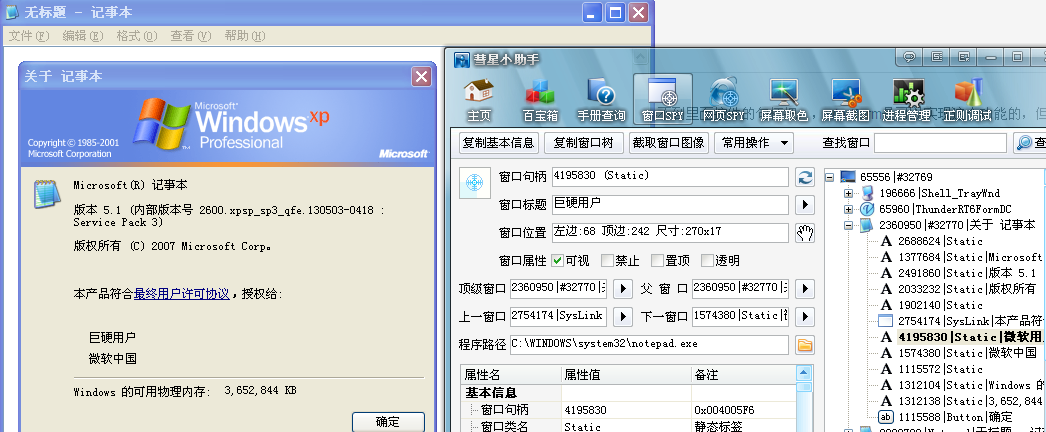
只要是标准控件还是很容易获取和设置的
可以试试窗口句柄查找工具 看一下就知道可以不可以了