
Java紼嬪簭璋冧紭---鍘繪帀 java 欏圭洰涓?澶氫綑鐨刯ar鍖?鏂規硶
Configuring Eclipse
Eclipse by default starts its VM with a very small heap and stack. This leads to some mysterous stack overflows from within Eclipse when plugins are performing long running jobs. This is a well documented bug within Eclipse that affects other plugins. The work around is to increase the stack size upon eclipse startup.
eclipse.exe -Xms64m
Opening Classpath Helper Views
The Classpath Helper Views can be opened in any perspective with the following steps.
First, from the Menu select聽Window->Show View->Other...

Second, under the聽Classpath Helper聽category, select the聽Classpath Helper View,聽Location By Location View, or聽Packages View

The Classpath Helper View
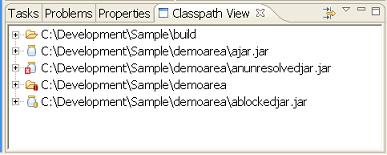
The basic layout of this view should be a straight forward translation of the classpath. The classpath is based upon the currently selected聽model聽(which initially is taken from the currently selected Java Project from you聽Package Explorer聽view).
Familar icons are used for Jar files and class folders. The order is represented top to bottom. The various decorations on these elements will be explained later.
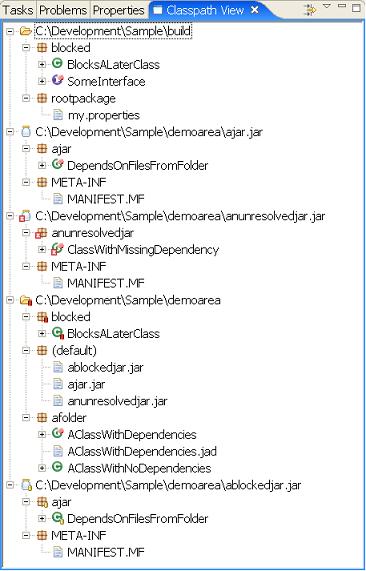
This can be expanded to show the classes and interfaces within each jar or folder.
Unresolved Classes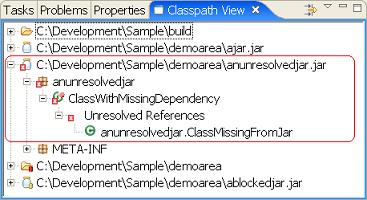

The highlighted region shows a jar and class file decorated with a聽 . This indicates that a reference to a class cannot be resolved (found) on the current classpath. In this example, a class called聽
anunresolvedjar.ClassMissingFromJar聽cannot be found. At runtime this would lead to either a聽java.lang.ClassNotFoundException聽or a聽java.lang.NoClassDefFoundError. In either case, the class聽anunresolvedjar.ClassWithMissingDependency聽cannot be loaded.
Blocked (Obscured) Classes

The first highlighted region (next to the聽 ) shows jar and class file decorated with a聽
 . This indicates a class is 'blocked' or 'obscured' on the classpath. This means that the class/interface located at this location will never be loaded. Instead it is loaded from another location. In this instance, we can see that the class聽
ajar.DependsOnFilesFromFolder聽will actually be loaded from聽C:\Development\Sample\demoarea\ajar.jar.
In the second highlighted region (next to the聽 ) we can see the class聽
ajar.DependsOnFilesFromFolder. Although not a critical problem with the classpath, it could be confusing if the jar聽C:\Development\Sample\demoarea\ablockedjar.jar聽is updated with a new instance of聽ajar.DependsOnFilesFromFolder聽as the newer class will never get loaded into the JVM.
Blocked (Obscured) Classes with different versions

The first highlighted region (next to the聽聽shows a folder and class file with a聽 . This indicates a class is 'blocked' or 'obscured' on the classpath. This is essentially the same as a yellow rectangle with one addition. The red color is also an indication that the version of the class at this location (
C:\Development\Sample\demoarea聽in this example) is different from the version that will actually be loaded (from聽C:\Development\Sample\build聽in this example). As with a yellow rectangle, the folder shown below the聽blocked聽class is the location where the class will actually get loaded from.
As with the previous example, the second highlight聽聽is showing the folder where the actual class will get loaded from. Of course blocking locations will always be above (appear earlier) in the classpath.
Unreferenced Classes

Classes decorated with the聽 聽image indicates a class that is not referenced by any other class. In the above image聽
afolder.AClassWithDependencies聽is not referenced by any other class. Keep in mind that this information is based solely on references maintained within the classfile itself.聽There are several notable cases where class files are referenced but this will not be indicated including:
- In cases where聽
Class.forName()聽is used to load a classes, which is common in many frameworks including struts, WAR web.xml files, EJB descriptors, etc. - Interface constants (
static final聽constants) are compiled inline. This means that although there's a compile time dependency on the constants at runtime there is no reference to the declaring interface/class.聽
What a聽
Class聽or聽Interface聽Depends On
In addition to showing issues or problems with the classpath, Classpath Helper also can be used to show what classes/interfaces a particular class depends on. The highlighted region shows that the class聽
ajar.DependsOnFilesFromFolder聽depends onafolder.AClassWithNoDependencies聽loaded from聽C:\Development\Sample\demoareablocked.BlocksALaterClass聽loaded from聽C:\Development\Sample\build聽
Referenced By

In addition to showing locations and classes a class depends on, it is also possible to see which classes refer to a given class. In the above image you can see the class聽
SomeInterface聽is referenced by聽blocked.BlocksALaterClass聽(which is located in the聽C:\Development\Sample\build聽folder).Filtering
 聽
聽
 聽
聽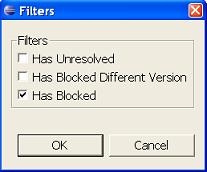
 聽
聽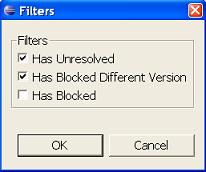
 聽
聽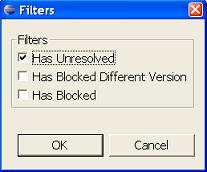
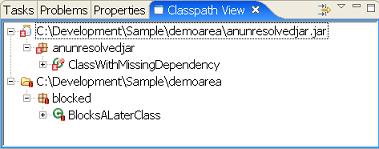
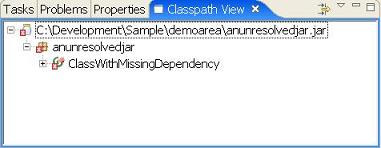
It is possible to apply filtering to the Classpath Helper view. Filtering will only show jars/folders/classes/packages that relate to selected filtering criteria.
The Location by Location View
The layout of this view initially appears identical to the ClasspathHelper view, however it is intended to show relationships between jars. The decorative icons are the same and essentially have the same meaning. But the Location by Location view can be used to view inter jar information.
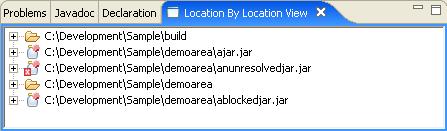
This can be expanded in a similar fashion.
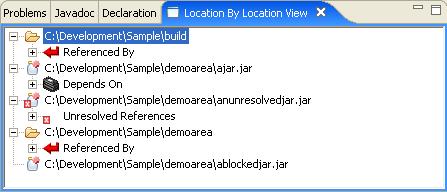
Depends On
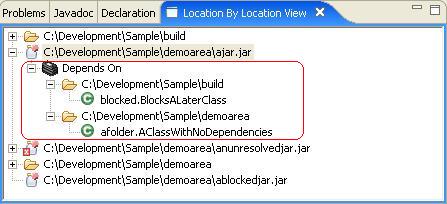
The Depends on branch shows which jars/folders that this particular jar depends on. In this case聽
ajar.jar聽depends on both the聽build聽and聽demoarea聽folders. Within each folder we can see the specific classes that are depended on.Also notice the unreferenced icon聽
 . As with the classpath helper view, this indicates that the object is unreferenced. However in this view the icon indicates a jar that is not referenced at runtime by any other jar. This can be useful in locating obsolete jars.
Referenced By
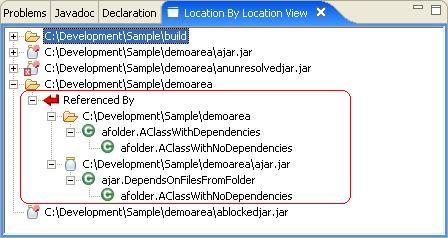
The Referenced by Branch is the reverse of the depends on view. It shows which jars a particular jar supports or is referred to by. In this case,聽
demoarea聽is referenced by itself and聽ajar.jar. The references are聽afolder.AClassWithDependencies聽and聽ajar.DependsOnFilesFromFolders. The specific class referenced isafolder.AClassWithNoDependencies聽which is refered to by both.Unresolved
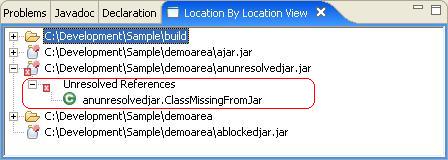
The unresolved branch is similar to unresolved branch from the ClassPath view. The only difference is that it is showing a summary of unresolved classes for the entire jar. In this case聽
anunresolvedjar.ClassMissingFromJar聽cannot be found.The Package View
This view takes a package centric view of the classpath, allowing you to look for classes without knowing or caring about the location of the class. The decorative icons are the same and have the same meaning as the other views.
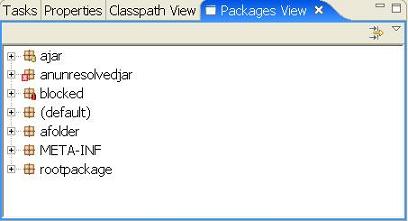
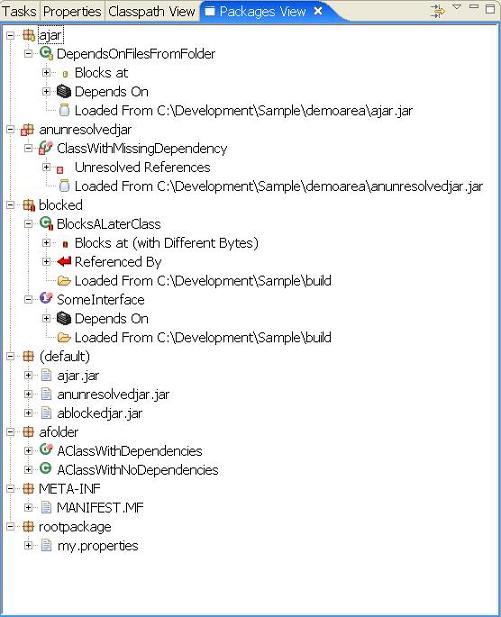
Packages can be expanded to reveal the contents of a package.
Unresolved Classes
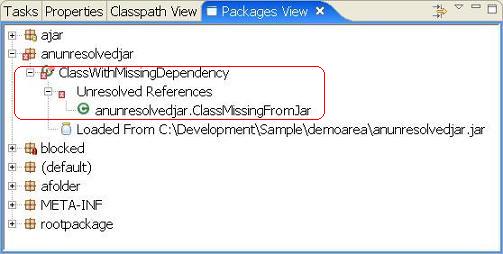
The highlighted region shows a package and class file decorated with a聽
 . This indicates that a reference to a class cannot be resolved (found) on the current classpath. In this example, a class called聽
anunresolvedjar.ClassMissingFromJar聽cannot be found. At runtime this would lead to either a聽java.lang.ClassNotFoundException聽or a聽java.lang.NoClassDefFoundError. In either case, the class聽anunresolvedjar.ClassWithMissingDependency聽cannot be loaded.Blocked (Obscured) Classes
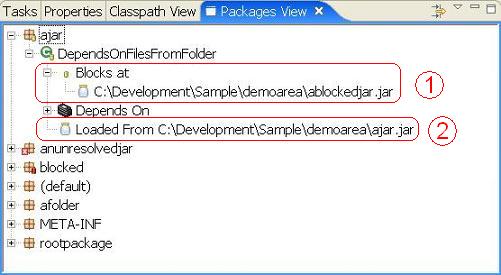
The first highlighted region (next to the聽
 ) shows the class file聽
DependsOnFilesFromFolder聽decorated with a聽 . This indicates the class is 'blocked' or 'obscured' on the classpath. This means that the class/interface is available at multiple locations on the classpath. The list shows areas where this class is blocked.
The second highlighted region (next to the聽
 ) shows where the class would actually be loaded from.
Blocked (Obscured) Classes with different versions
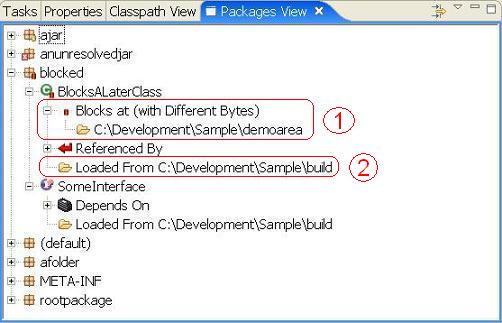
The first highlighted region (next to the聽
聽shows the class聽BlocksALaterClass聽file with a聽 . This indicates it is is 'blocked' or 'obscured' on the classpath. This is essentially the same as a yellow rectangle with one addition. The red color is also an indication that the version of the class at this location (
C:\Development\Sample\demoarea聽in this example) is different from the version that will actually be loaded (from聽C:\Development\Sample\build聽in this example). As with a yellow rectangle, the folder shown below the聽blocked聽class is the location where the class will actually get loaded from.As with the previous example, the second highlight聽
聽is showing the folder where the actual class will get loaded from. Of course blocking locations will always be above (appear earlier) in the classpath.What a聽
Class聽or聽Interface聽Depends On
In addition to showing issues or problems with the classpath, Classpath Helper also can be used to show what classes/interfaces a particular class depends on. The highlighted region shows that the class聽
ajar.DependsOnFilesFromFolder聽depends onafolder.AClassWithNoDependencies聽loaded from聽C:\Development\Sample\demoareablocked.BlocksALaterClass聽loaded from聽C:\Development\Sample\build聽
Referenced By

In addition to showing locations and classes a class depends on, it is also possible to see which classes refer to a given class. In the above image you can see the class聽
SomeInterface聽is referenced by聽blocked.BlocksALaterClass聽(which is located in the聽C:\Development\Sample\build聽folder).Filtering
 聽
聽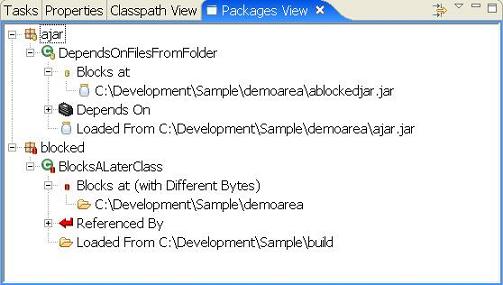 聽
聽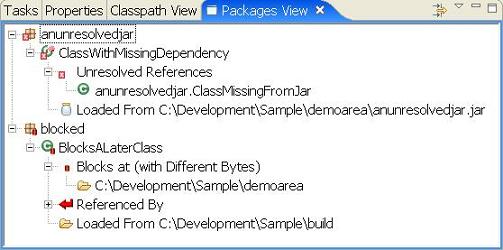 聽
聽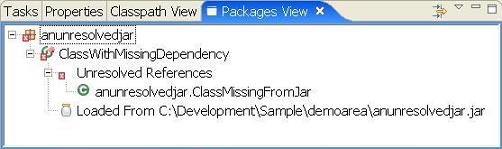 聽
聽It is possible to apply filtering to the Classpath Helper view. Filtering will only show jars/folders/classes/packages that relate to selected filtering criteria.
Not on Classpath View
This view scans for jars that are not on the classpath (but are under the current project). It provides basic browsing of packages and classes that are available but not on the classpath. This can be helpful when trying to build up a classpath, as you can quickly browse for the missing classes to see which jars contain them.
Available locations
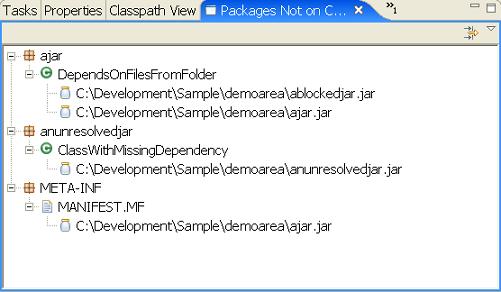
The only information this view shows is which jars a class or interface can be loaded from. Only jars from the current Eclipse project that are not already on the classpath are scanned (this image was created by removing previously demoed jars from the classpath).
鎻掍歡浜岋細Classpath Checker
聽
鎻掍歡鍦闆潃錛歨ttp://classpathchecker.free.fr/
Classpath Checker @ Eclipse Plugin CentralClasspath Checker Eclipse Plugin v1.4.3
Description
- The Classpath Checker eclipse plugin聽detects classpath inconsistencies聽in Java projects.
That means it is able to: - Detect if a jar file is missing in your classpath. In case a class in your classpath depends on other classes that are not present in the classpath, the plugin warns you and gives you the missing class names.
- Detect if you have some duplicated classes in all your jar files. In case of duplicated classes, this plugin warns you. If there are version conflicts in the duplicated classes, it helps you to determine which is the wrong Jar to remove from your classpath.
Why do I need this plugin?
As you know, current java projects depend of more and more external libraries, and 3rd party products. Obviously, each 3rd party product embeds its own libraries, consequently it becomes very difficult to be sure there are no classpath problems in the application. One terrible behavior is when the libraries order becomes important in the classpath! That's why Classpath Checker can help you.
Installation
- This plugin has been tested on Eclipse 3.3.0 (Europa) only.
To install the Classpath Checker plugin:
Click here if you have the version (v1.1.0) - In Eclipse, click on聽Help聽->聽Software Update聽-> Find and Install...
- Choose the聽Search for new features to install聽option, and click聽Next.
- Click聽New Remote Site.
- Enter the following:
- Name:聽Classpath Checker
- URL:聽http://classpathchecker.free.fr/update-siteand click聽OK.
- "Classpath Checker" should appear under聽Sites to include in search.聽
Click the checkbox next to it to select it, and click聽Finish. - You should see聽Classpath Checker聽under聽Select features to install.聽
(You may have to click on one or two triangles to make it visible in the tree.)聽
Select the checkbox next to it and click next. - Select the聽I accept聽option to accept the license and click聽Next.
- Make sure the location is correct where you're installing it. The default (your workspace) should be fine. Click聽Finish.
- The plugin is not digitally signed. Go ahead and install it anyway.
- Click聽Yes聽to make Eclipse restart itself.
How to use it?
After installing the plugin, you have to right click on your java project, then select "Properties".
The following dialog is displayed, select the "Classpath Checker" section, and then check the "Activate classpath checker".- The Classpath Checker eclipse plugin聽detects classpath inconsistencies聽in Java projects.


 聽
聽
 聽
聽
 聽
聽
 聽
聽












 聽
聽 聽
聽 聽
聽 聽
聽