新时尚Windows8开发(13):如何选择保存文件 老周的博客http://blog.csdn.net/tcjiaan,转载请注明原作者和出
新时尚Windows8开发(13):如何选择保存文件
老周的博客http://blog.csdn.net/tcjiaan,转载请注明原作者和出处。
上一篇文章中,我们讨论了打开文件的UI,现在,我们继续探索一下保存文件的UI组件,同样道理,也是很简单的。
这回我们用到Windows.Storage.Pickers.FileSavePicker类,与上次打开文件的使用方法基本一致。当我们调用PickSaveFileAsync方法后,如果用户进行了确认而不是取消,就会返回一个StorageFile实例,我们的写入操作就可以围绕StorageFile对象展开了。
下面我们来用实例来说明一下吧。
第1步,启动VS,新建一个空白页面的Windows Store应用程序。
第2步,对主页MainPage.xaml我们作以下布局。
<Page x:Class="SaveFilePickerExample.MainPage" xmlns="http://schemas.microsoft.com/winfx/2006/xaml/presentation" xmlns:x="http://schemas.microsoft.com/winfx/2006/xaml" xmlns:local="using:SaveFilePickerExample" xmlns:d="http://schemas.microsoft.com/expression/blend/2008" xmlns:mc="http://schemas.openxmlformats.org/markup-compatibility/2006" mc:Ignorable="d"> <Canvas Background="{StaticResource AppBarBackgroundThemeBrush}"> <TextBox Name="txtContent" Canvas.Left="6" Canvas.Top="11" Width="1279" Height="365" TextWrapping="Wrap" FontSize="18"/> <Button Content="保存到文件" Canvas.Left="54" FontSize="24" Canvas.Top="414" Padding="25,17" Click="btnSave_Click"/> <TextBlock Name="Msg" FontSize="20" Canvas.Left="280" Canvas.Top="450"/> </Canvas></Page>
第3步,切换到代码视图,完成下面代码。
using System;using System.Collections.Generic;using System.IO;using System.Linq;using Windows.Foundation;using Windows.Foundation.Collections;using Windows.UI.Xaml;using Windows.UI.Xaml.Controls;using Windows.UI.Xaml.Controls.Primitives;using Windows.UI.Xaml.Data;using Windows.UI.Xaml.Input;using Windows.UI.Xaml.Media;using Windows.UI.Xaml.Navigation;using Windows.Storage;using Windows.Storage.Pickers;namespace SaveFilePickerExample{ /// <summary> /// 可用于自身或导航至 Frame 内部的空白页。 /// </summary> public sealed partial class MainPage : Page { public MainPage() { this.InitializeComponent(); } private async void btnSave_Click(object sender, RoutedEventArgs e) { if (this.txtContent.Text.Equals(string.Empty)) { return; } FileSavePicker picker = new FileSavePicker(); // 提交按钮上显示的文本 picker.CommitButtonText = "保存"; // 支持的文件类型 picker.FileTypeChoices.Add("文本文件", new string[] { ".txt" }); // 默认显示的目录 picker.SuggestedStartLocation = PickerLocationId.Desktop; // 显示UI并返回内容 StorageFile file = await picker.PickSaveFileAsync(); // 向文件写入内容 if (file != null) { await FileIO.WriteTextAsync(file, txtContent.Text, Windows.Storage.Streams.UnicodeEncoding.Utf8); this.Msg.Text = "文件已保存。"; } } }}
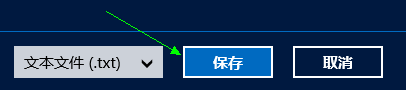
设置CommitButtonText属性,就是提交按钮上显示的文本,比如上面代码中,我们设置了“保存”,就会如下图所示的结果。
FileTypeChoices属性设置支持的文件类型,它是一个字典集合,键就是用于说明的简短文本,值是一个列表值,可以包含多个扩展名。如:
Jpeg图片 ----> .jpg .jpeg
音频文件 ----> .mp3 .wav .wma
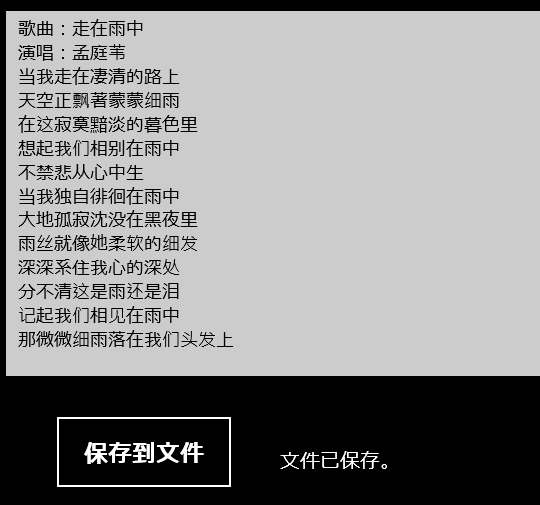
本例的执行结果如下面图所示。
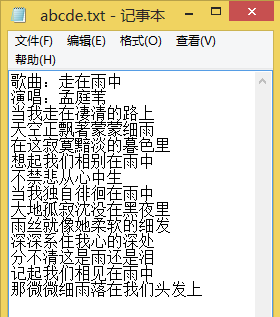
当文件保存后,我们再用记事打开刚刚保存的文件,就能看到对应的文本内容。